Connecting Equals to your AI tools
You can connect your Equals account to the AI tool you already use, including Claude and ChatGPT via MCP (Model Context Protocol). Once connected, you can check balances, look up payments, review card spend and pull activity for any date range by asking a question, rather than opening the platform and running a report. It uses the Model Context Protocol, an open standard for connecting AI tools to other software.
Your Equals permissions come with you. The connection respects your role. The connector only exposes the information you can already see in Equals yourself. Connecting an AI tool does not give you access to anything new.
Who can use it
You will need an Equals account and your usual sign-in details.
How you add the connector depends on the account your AI tool sits on.
- A personal Claude or ChatGPT account. You add the connector yourself, following the steps below.
- An account your organisation manages. An administrator adds the connector once for everyone, and you switch it on from the list they have set up. You may not be able to add it yourself.
What you can do with it
If you run finance or reconcile the books
- Show me every payment that left our euro account last week.
- At our current spend, how long will our dollar balance last?
- Check last month's card spend against our expenses policy.
- Prepare a quarter-on-quarter spend report
If you manage cards and people
- Who has a card and what are their spending limits?
- Show me [name]'s card spend this month.
- Which cardholders have not used their card in the last 60 days?
If you have a card
- What did I spend on my card last week?
- What was the transaction on the 14th for?
The connector address
You will need this address when you add the connector. It works with any AI tool that supports remote connectors.
https://mcp.equalsmoney.com/mcpConnecting Equals to Claude
Adding it yourself
- In Claude, go to Settings, then Connectors.
- Select the plus button, then Add custom connector.
- Enter
Equalsas the name and paste the connector address. - Select Add, then Connect, and sign in with your Equals details.
If you are an organisation owner
An owner adds the connector once, and everyone else in the organisation connects to it.
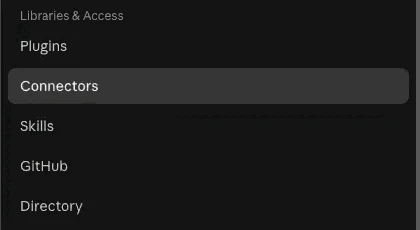
- Go to Organisation settings, then Connectors. It sits under Libraries and access.
- Select Add and paste the connector address.
- Give it a name. You can call it whatever suits your team, and it will still connect to Equals.
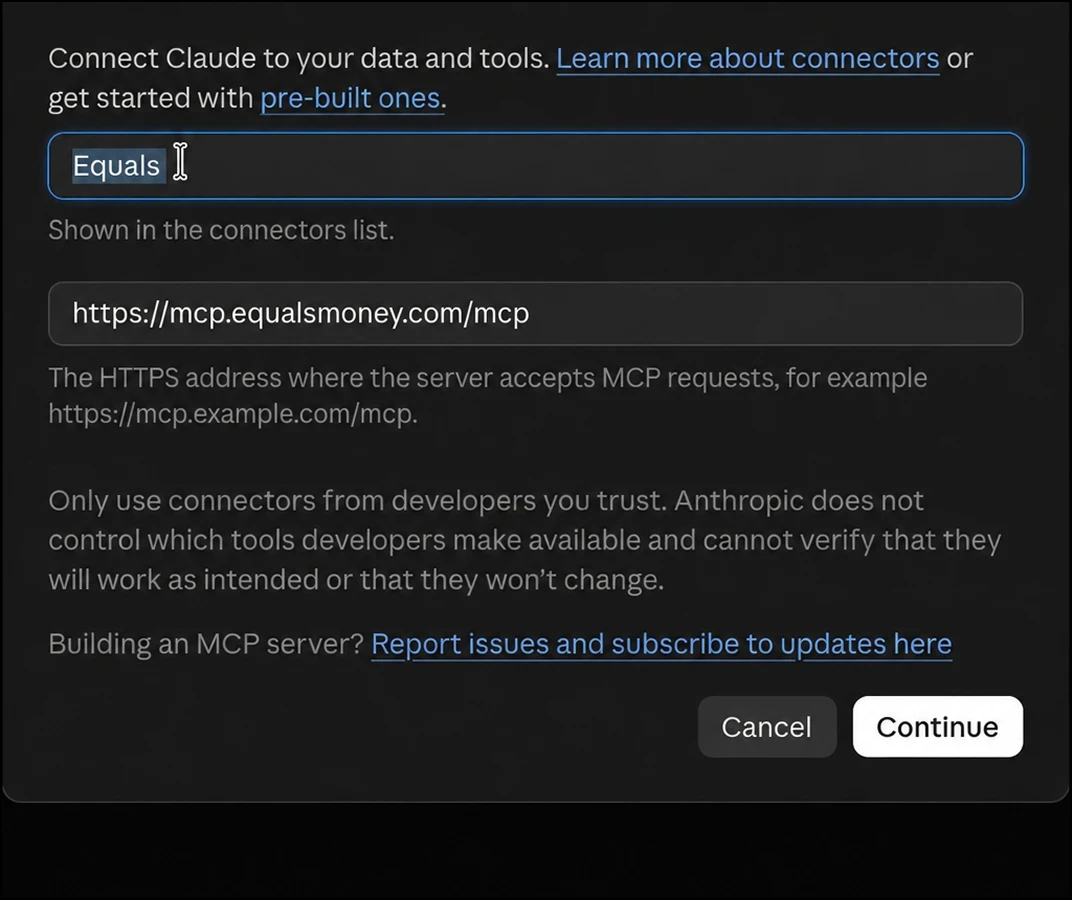
- Continue, Claude checks the address and works out how to sign you in.
- Sign in with your Equals details when prompted. If Claude asks how you want to sign in, choose browser sign in.
Connecting once your organisation has added it
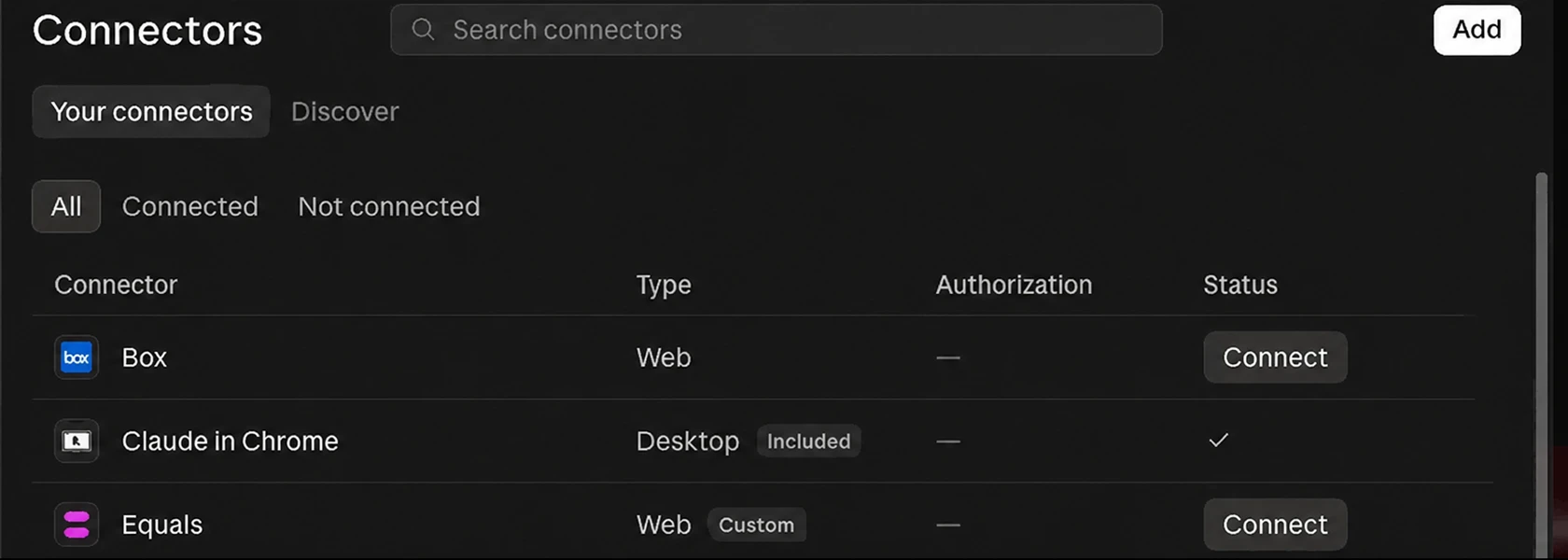
- Go to Settings, then Connectors.
- Find Equals under Customize.
- Select it and sign in with your Equals details. Claude brings you straight back when you are done.
Connecting Equals to ChatGPT
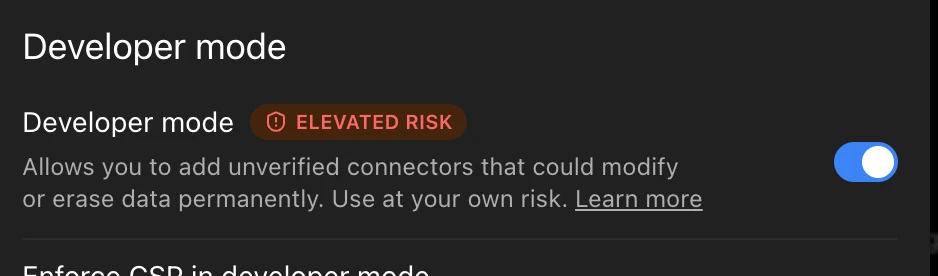
Adding a connector in ChatGPT uses developer mode, and it works on the web rather than in the mobile app.
- Go to Settings, then Security and login, and turn on Developer mode.
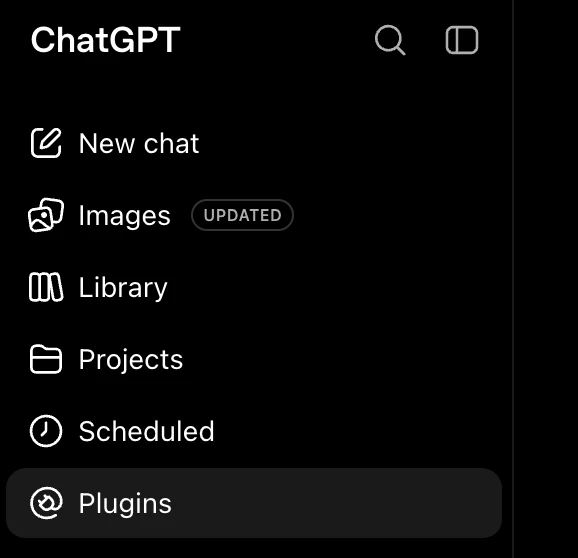
- Go to chatgpt.com/plugins.
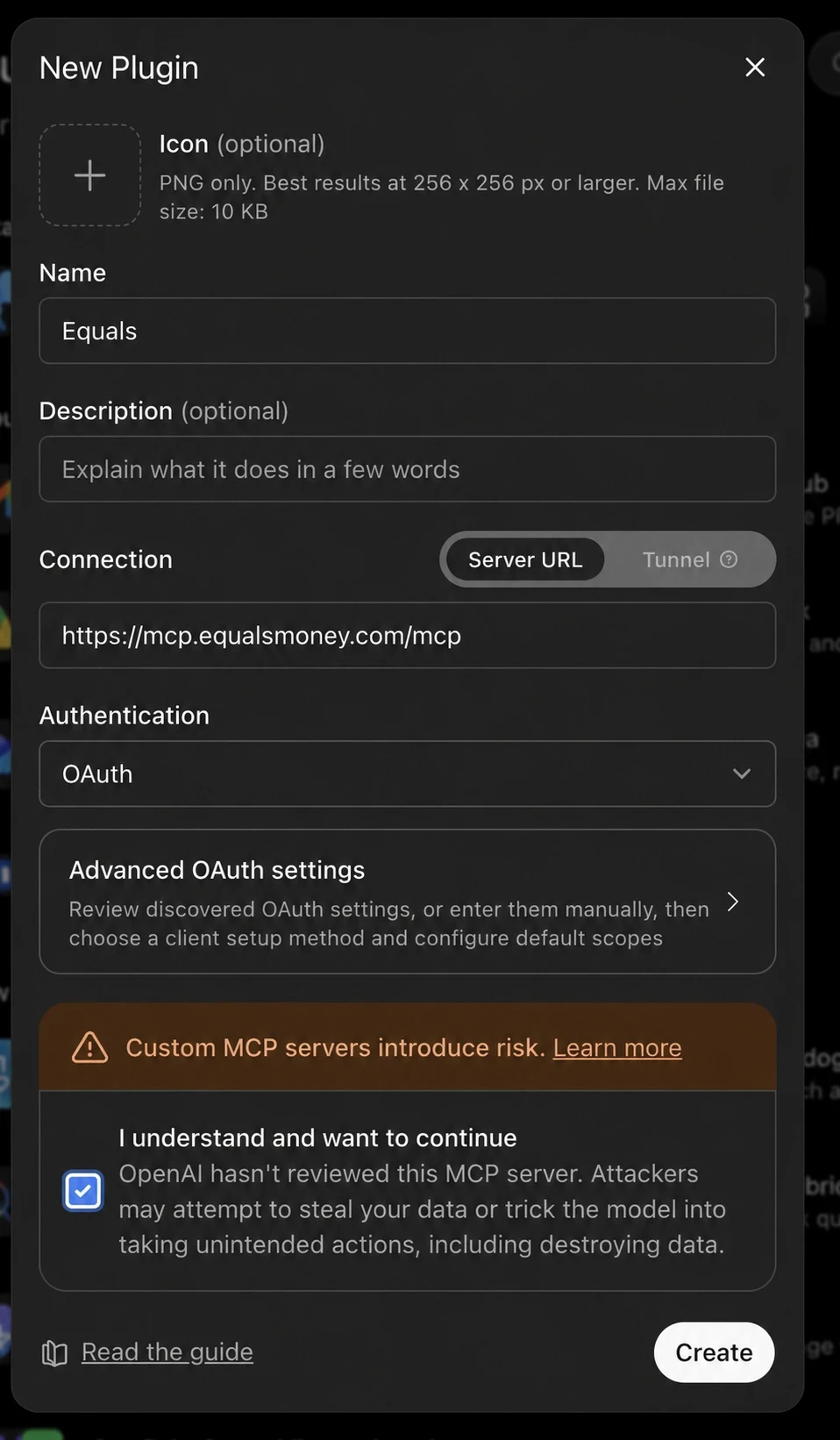
- Choose to create a new connector, enter
Equalsas the name and paste the connector address. - Choose OAuth as the authentication method, select Scan tools, then sign in with your Equals details when prompted.
- Select Create. The connector then appears in the chat window for you to switch on.
Connecting a different AI tool
Claude and ChatGPT are covered above. The connector is not limited to them. Any AI tool that supports remote connectors can use the same address, including Cursor, Claude Code and Notion. Check your AI tool's documentation for where to add one, then paste in the connector address.
Prompting
To check the connection, start a new chat and ask:
What is my Equals balance?
or
Take a look at everything you can do through the Equals connector, then tell me what I should be asking you for.
Here are some other ideas for queries you might find useful:
- What are we likely to have spent on subscriptions by the end of the year?
- At our current spend, how long will our dollar balance last?
- Check last month's card spend against our expenses policy.
- What did the Berlin trip cost, all in?
- Write my month-end summary for the finance director.
- Prepare a quarter-on-quarter spend report
What it cannot do
It cannot move money. No payments, no transfers, no funding cards. It answers questions about your account, and that is all. To move money, use the Equals platform.
It cannot do anything your role does not already allow. If you cannot view a balance or see cardholder spend in Equals, it cannot show you those things either.
It cannot attach receipts or documents. There is no standard way to upload a file through a connector yet. Add receipts in the Equals platform or the app.
It cannot change your account settings.
It cannot open an account or close one.
Using it safely
- Check anything important in Equals before you act on it. AI tools can misread a question or summarise something incorrectly.
- Equals will never ask for your password in a chat. Signing in happens on the approval screen when you connect, and nowhere else.
Turning it off
Remove the connector in your AI tool's settings and access ends immediately. In Claude that is Settings, then Connectors, then the options next to Equals. In ChatGPT, remove it from the same screen you added it on. There is nothing to remove on the Equals side.
If something goes wrong
It disconnected on its own. Remove the connector and add it again, signing in when prompted. If it keeps dropping, get in touch and we will check your access.
Equals does not appear in your list of connectors. If your organisation manages your AI tool, an administrator may not have added it yet.
Common questions
Do I need a developer to set this up?
No. Adding a connector is a settings change in your AI tool, not a build. If your organisation manages your AI tool, an administrator needs to do it once.
Can other people in my business see my data through it?
Only what they can already see in Equals. It follows the role and permissions on each person's own account.
Can it make a payment for me?
No. The connector reads your Equals data and cannot move money.
I have access to more than one Equals account. Can I ask about all of them?
Yes. If your sign-in gives you access to more than one account, you can ask about any of them through the same connection. Name the account in your question when you want a specific one.
What if I want to stop using it?
Remove the connector in your AI tool's settings and access ends.
Look through more platform walkthroughs


Ready to get started?
Open an account today and put this guide to use right away.